Guide 8 of 8 · Cutting · 6 steps
Notes on the time, then the release list
In the cutting room a note is pinned to a frame. Resolve the notes, set where the cut goes out, and only then can it be approved: by you.
- At the end
- A cut reviewed to the frame, every note resolved, a destination set, and the cut approved by you.
- Before you start
- A production with a cut. On the sample channel, “Five ways to draw Rivet” has one: its five style tests, four seconds each.
- Nothing to connect: reviewing a cut spends nothing.
Open the reel
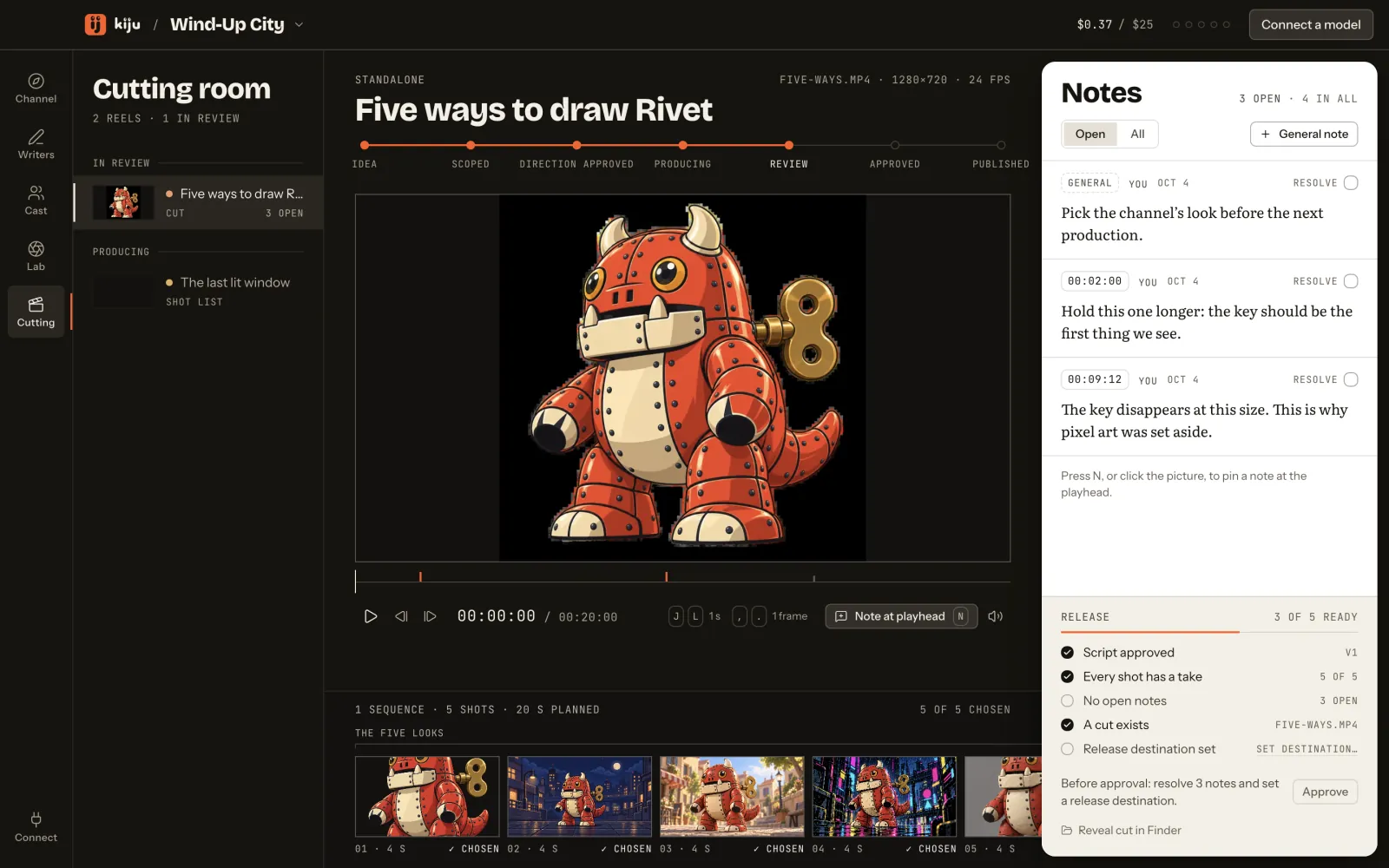
Open the Cutting room. The reels are listed on the left, those in review first; a production arrives here once it has a shot list or a cut. Open one: the cut plays in the gate, its notes sit on the right, its shot list runs at the bottom.
 (Open the full picture)
Find the frame
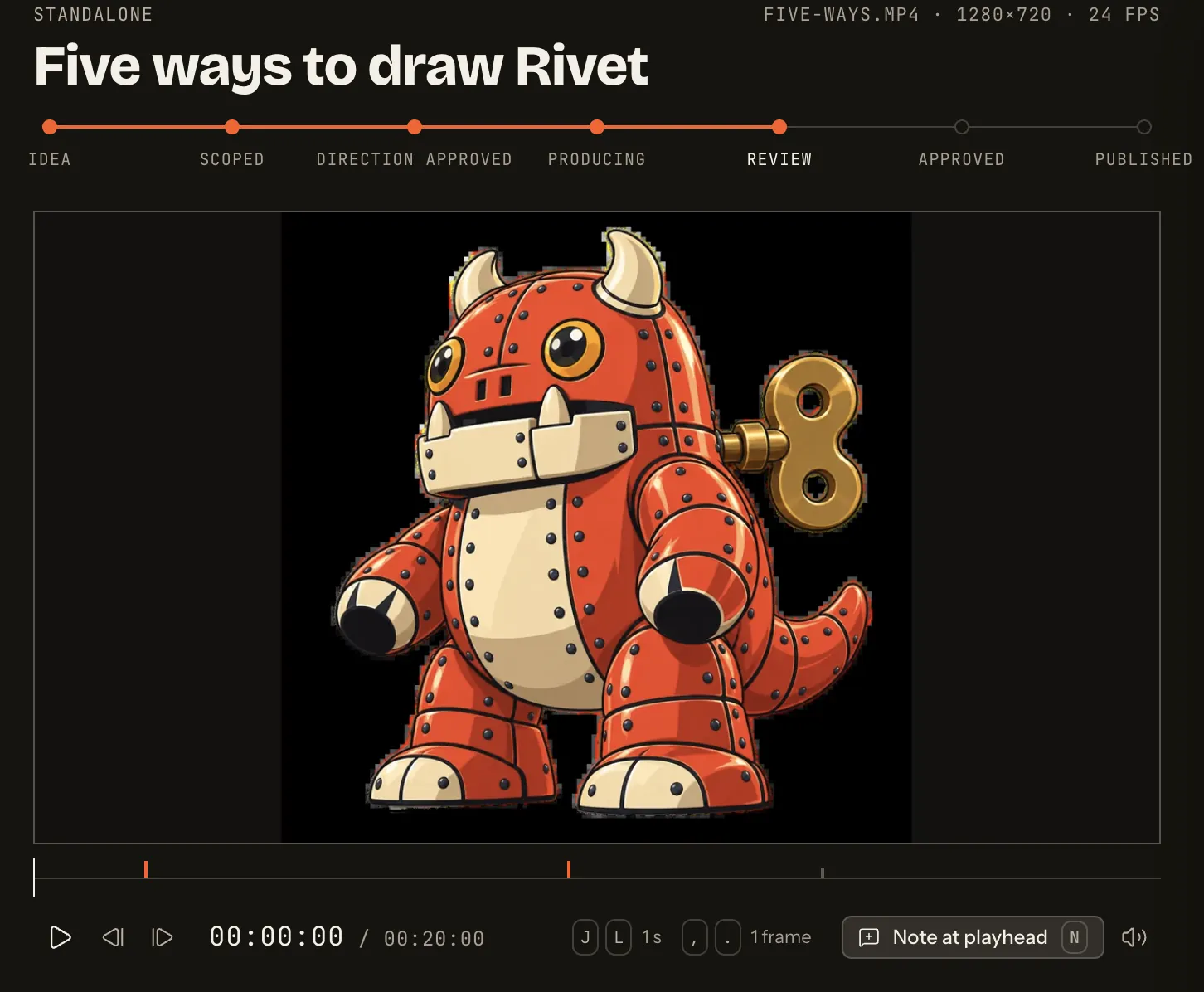
Space plays and pauses. The comma and the period step one frame; J and L, one second. The timecode reads minutes, seconds and frames, at 24 frames a second. Ticks on the scrub bar mark the notes, and a note lights up as the playhead passes it.
 (Open the full picture)
Pin a note
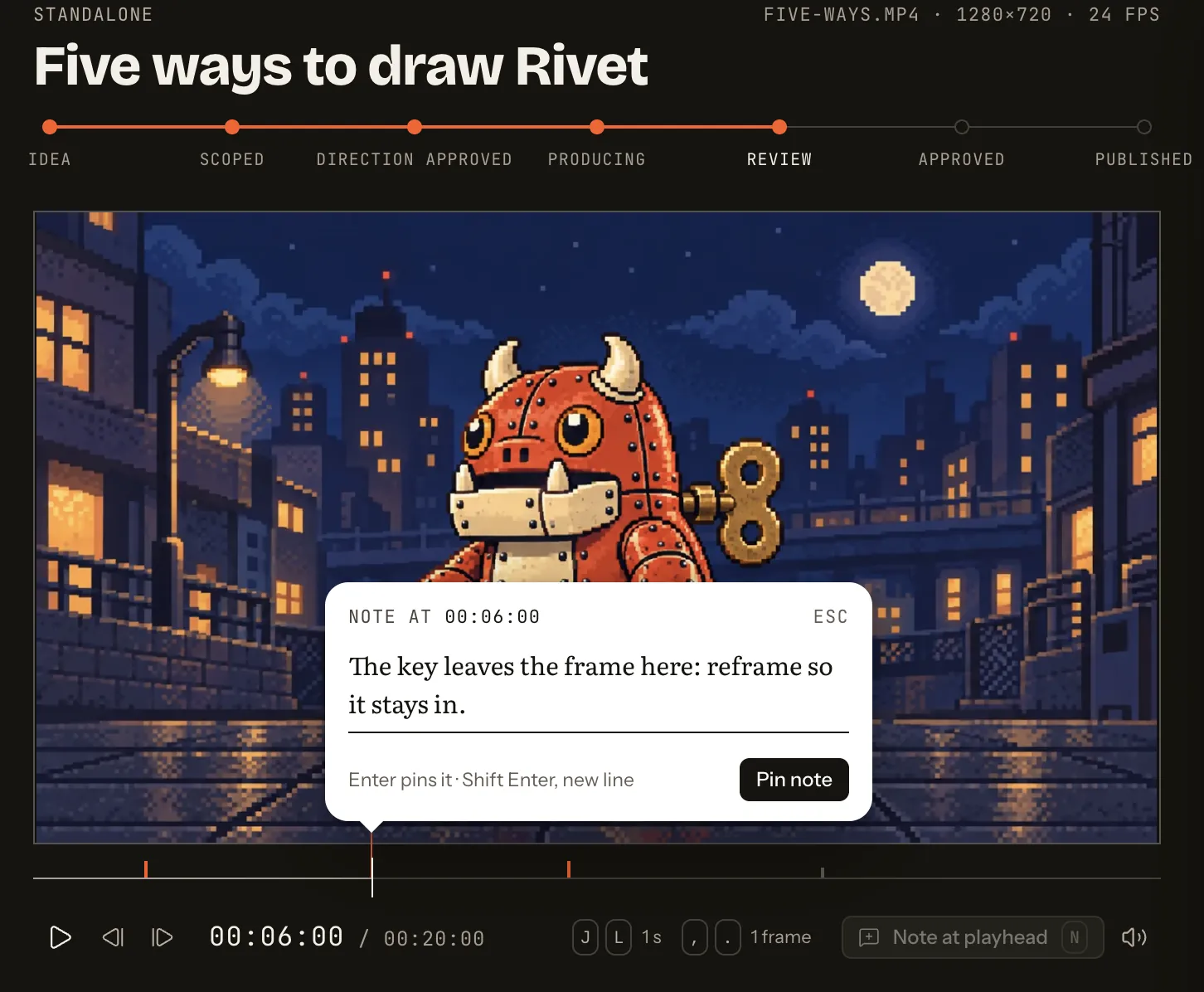
Press N, or Note at playhead, or click the picture. A sheet opens on the frame, with its timecode, and asks what should change there.
 (Open the full picture)
Write the note and press Enter to pin it (Shift Enter starts a new line, Esc discards it). A note about the whole production is a General note.
Work through the notes
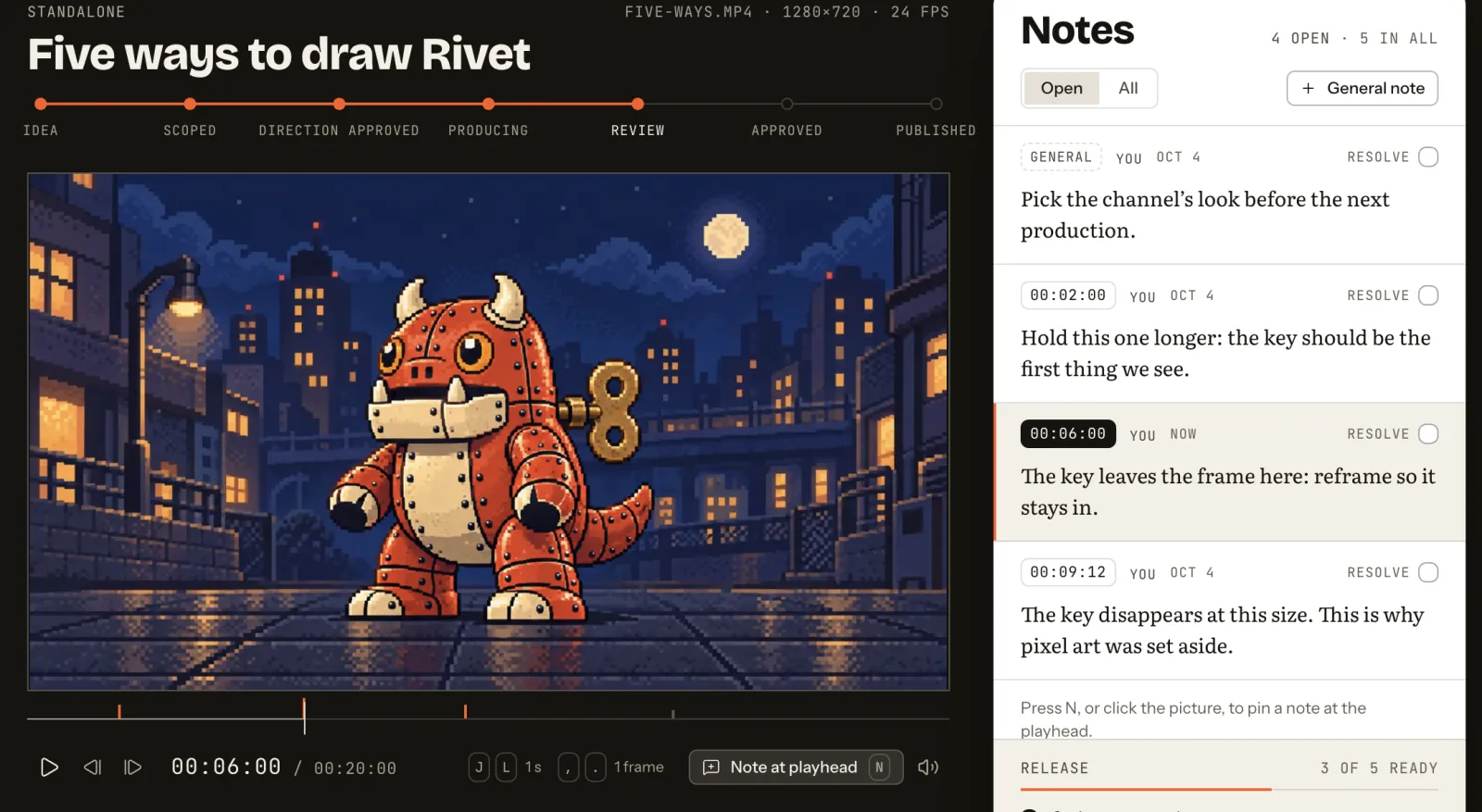
The notes sit beside the picture, in time order, each with its timecode: press one to go to its frame. The new note is marked where you pinned it.
 (Open the full picture)
When a note is dealt with, press Resolve. The list opens on the notes still open; All shows the resolved ones too. Notes are written in the production’s own file: they are still there after a restart, and for whoever opens the folder next.
Read the release list
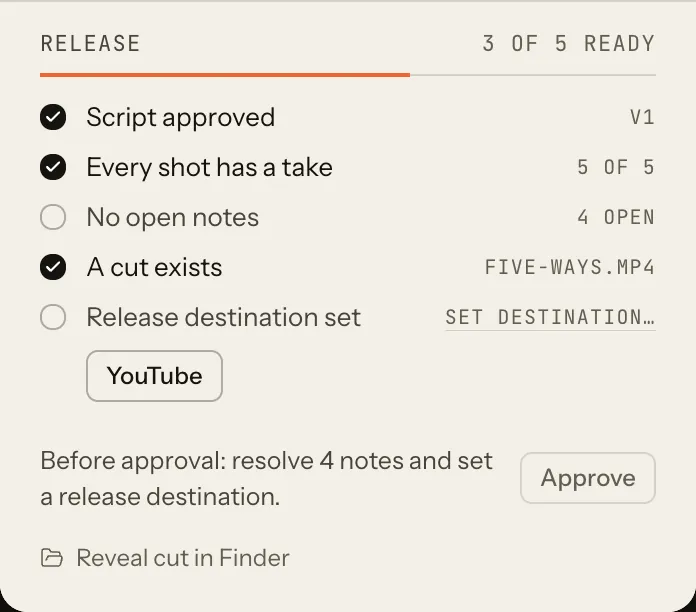
Under the notes, the release list counts what the cut needs: an approved script, a take for every shot, no open notes, a cut, and a release destination. Set destination… offers the channel’s destinations. While a note is open the approve button stays grey, and the line beside it says what is missing.
 (Open the full picture)
Try it hereIllustration
Pin a note at the playhead, resolve the open notes, set the destination, then approve the cut.
Five ways to draw Rivet

Notes3 open
- General note
Pick the channel’s look before the next production.
Hold this one longer: the key should be the first thing we see.
The key disappears at this size. This is why pixel art was set aside.
Release3 of 5 ready
- Script approved: ✓v1
- Every shot has a take: ✓5 of 5
- No open notes: —3 open
- A cut exists: ✓five-ways.mp4
- Release destination set: —
Before approval: resolve 3 notes and set a release destination.
Behaves like the desk’s control. This page saves nothing and sends nothing.
Approve the cut
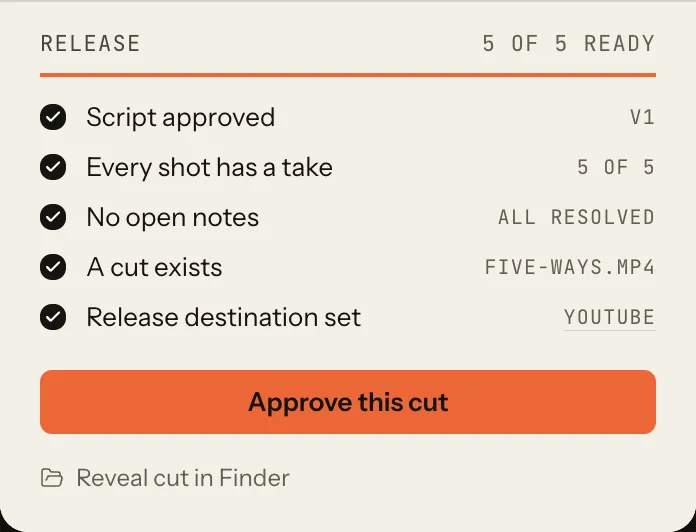
With no note open, Approve this cut appears. It is the cut’s only way to approval, and it is a person’s button.
 (Open the full picture)
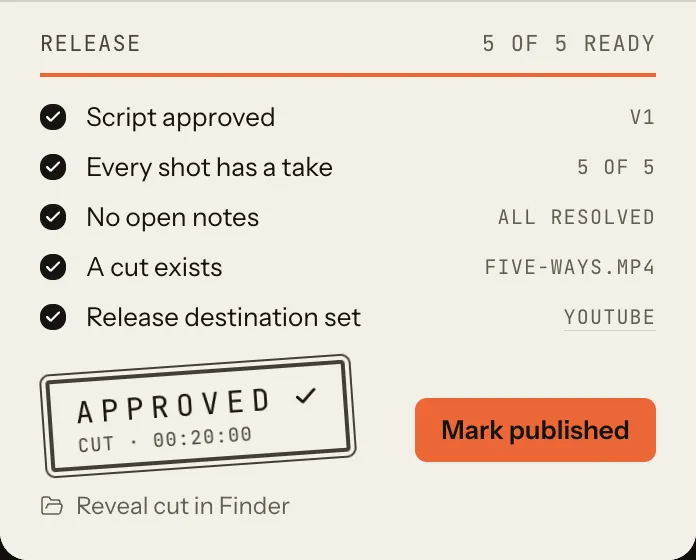
The stamp lands with the cut’s length. Next comes Mark published, which asks for the destination, the link and the date on the day it goes out.
 (Open the full picture)